An accessible website is a website that allows most, if not all, viewers to get the full benefit of the site. For the following tips, we are relying on Carleton’s WordPress 101 site.
Consider
- Adding alternative descriptions to all images on your site (unless they are purely decorative)
- Alt Text: People with visual impairment may not be able to see the images you place on your site. Because being accessible means that all communications — textual or visual — can be understood by all visitors, we need to provide a textual description of every image on our sites. This is called “alternative text” or “Alt Text.” All images must have Alt Text associated with them (this is actually a legal requirement for any service or commercial site, not just a nice-to-have). WordPress will ask you directly what Alt Text you want to add.
- Not sure how to write Alt Text for your image? Check out the Alt Text Decision Tree!
- Ensuring that text used for hyperlinking is meaningful. The link text should always describe what the user will see when they click the link. It should never be “click here” or the URL itself. Learn more about proper link usage
- Using headings of different levels to guide users through the site (rather than using set font size and bold as visual markers)
- See Use Headings section of Formatting Your Text
- Ensuring accurate closed captioning for any videos
- Closed captions are useful for anyone who needs or wants to watch videos at low or no volume. When was the last time you used closed captions?
- Creating Video Captions
- Using a color scheme with significant contrast for better visibility
- Creating contrast on your page makes it easier for colorblind people to read and see your content – and it makes it easier to print a page in black and white.
- Add Some Style
- For PDF files: Using the Accessibility checker to ensure the text is, for example, OCR enabled. (Note that you have access to Adobe Acrobat Professional through an Adobe Creative Cloud license or in any of Carleton’s computer labs)
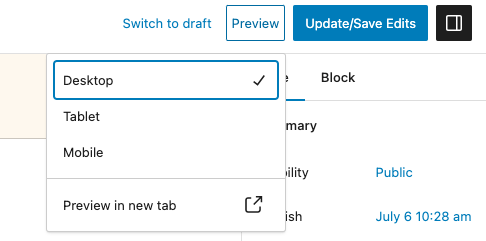
- Adjusting your site so that it works on mobile devices, such as smartphones.
- In your WordPress site, check out the options under Preview and select Tablet or Mobile to get a sense of what your site looks like on a smaller screen.
- https://www.w3.org/WAI/ER/tools/
- https://wave.webaim.org/
- Test accessibility, readability, and navigation and give a pass or fail
- Make sure mobile and desktop content has the same content
- Implement a responsive theme
- Choose mobile-friendly plugins
- Avoid full-page pop-ups
- Simplify on-site graphics
- Information from this video
If you are now curious about web accessibility, check out these additional websites, gleaned from Professor Amy Csizmar-Dalal’s Software Design class: